YubiKey - experiment 1
First foray into installing and testing a Yubikey with 1Password = FAIL!
I've acquired (2) Yubikeys - one for primary use and another for backup in case the first one is lost, gets damaged or just stops working.
What is a Yubikey? -> It's a hardware token device that is designed for several functions. Onboard, it has the ability to:
- Be a second factor during login on various accounts. Think authenticator app, but with a device. When you log into say your email account, enter a password, the second factor or (2FA) Two-Factor-Authentication - is the Yubikey.
- Specifically built certificates can be added to the key in a specific partition designed to house certificates. This use case is for specific access for devices, networks, VPNs and/or anything that needs a unique identifier to validate the user is supposed to have access. Think - company badge that opens a door, but then you need a Yubikey with a unique identifier to define if this person can access this specific door. Certificates can be changed vs hard coded badges can not, which is why hardware tokens or Yubikeys are useful.
- Passkeys - a newer authentication option that actually replaces passwords - it's a little more nuanced than 2FA or certificates and is stored on a specific area of the Yubikey. These are more tricky and frankly, problematic.
Now, lets get to the specific use case as a "newbie". All I wanted to do was setup my 1Password account to use a second authentication method or 2FA.
- I have a Yubikey that i've setup (I think anyway) and established the PIN, PUK and Password to protect the key in case it physically gets out of my control. Yep, another password and PIN to remember. Sigh!
- I have a 1Password account that does not have 2FA enabled. I should, but haven't set it up because I use 1Password as my "authenticator" app for everything else. So, to setup 1Password with 2FA it'd be a cyclical thing to sign into 1Password to create the authenticator code to, well, log into 1Password. I've tried and it kinda breaks - sorta. Another story, but suffice it to say, enabling 2FA for 1Password is tricky.
So, my thinking was, if I want to take advantage of 2FA for 1Password without setting up another authenticator app, a hardware token, AKA - Yubikey, would do the trick. That was my thinking anyway, but not as easy as it sounds.
To get started, I pulled up the 1Password documentation and quickly read through to get the general gist. Enable 2FA using a Security Key or Hardware Token, say yes to a few prompts and voila'.
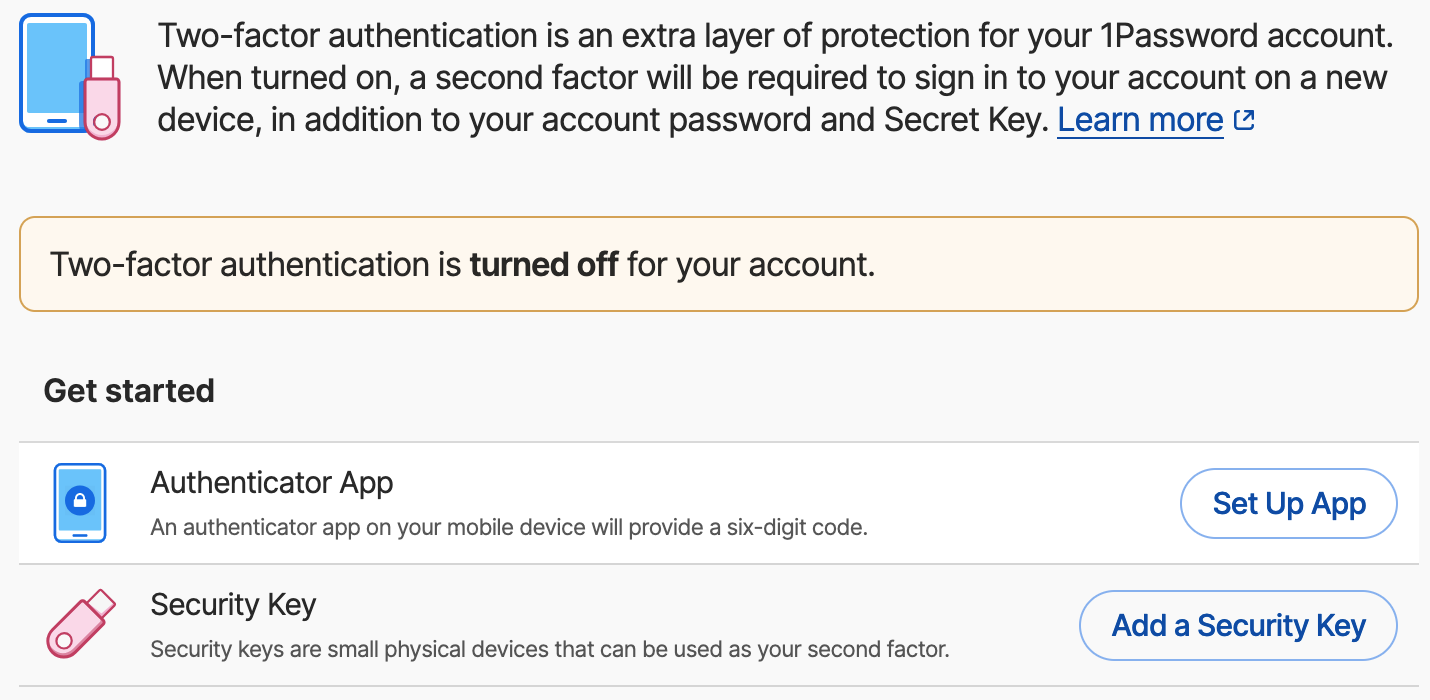
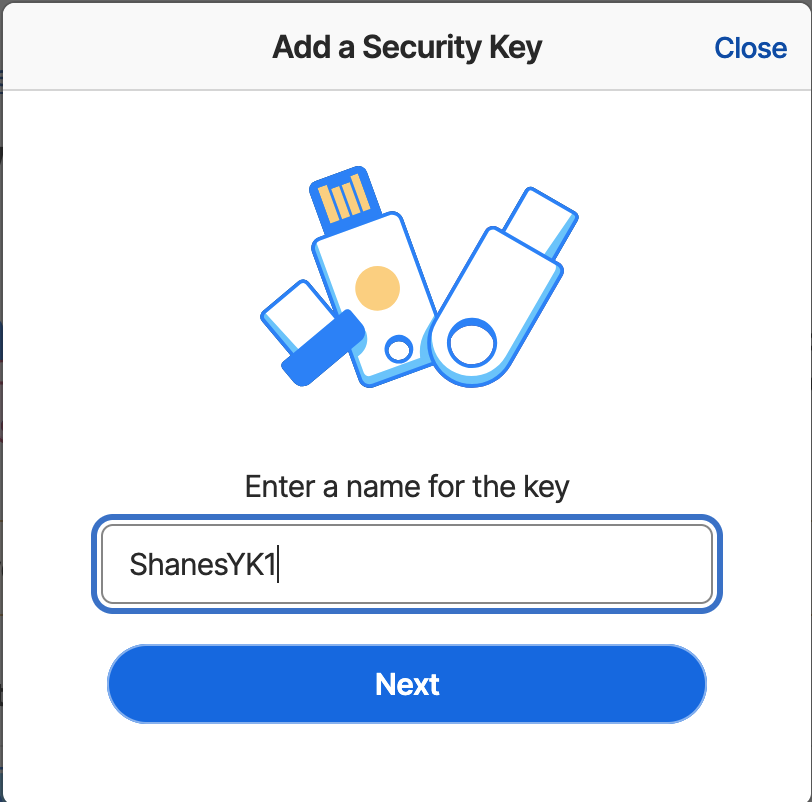
I selected "Add a Security Key" and was prompted to approve my "passkey" - huh?! - that was my first indication that something was amiss because that's not exactly what I was expecting.
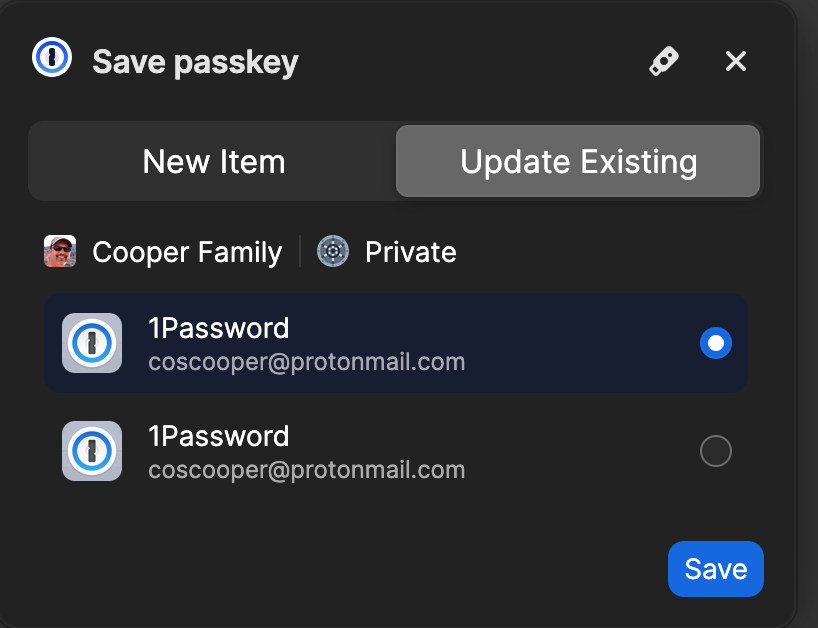
So - moving along, I hit save to the Passkey - which basically saved it back into 1Password - weird. (I actually failed at this point - because the documentation clearly said click on the little USB icon on the top right, NOT hit save) - but acting like a general user, the most obvious was to just hit save. Which - I did.
It just went south from there. The screen showed to "activate" my Yubikey and while the key was in the USB slot - nothing happened. Sigh!
Looking at my phone, I noticed a similar screen displaying and said to insert my Yubikey on my phone or near the top if it has NFC - which I pulled the Yubikey from my Macs USB slot, placed it near the top of the phone. Surely this would take.
Nope - it got stuck in some looping hell. A notification popped up saying, "Use Yubikey Authenticator App" - uh, yes please.
My iPhone launched the Yubikey Authenticator app and... well, nothing happened. More sighing insued!
Back on my Mac and on the Setup page for 1Passwords two-factor authentication page, I selected disable 2FA so as to not create a mess. Figured I'd start over and see if I missed something. Of course I did... the save the passkey to the little device icon, NOT 1Password.
STARTED OVER:
My second run was a little more promising, but it failed as well. The second time I selected the little USB stick icon.
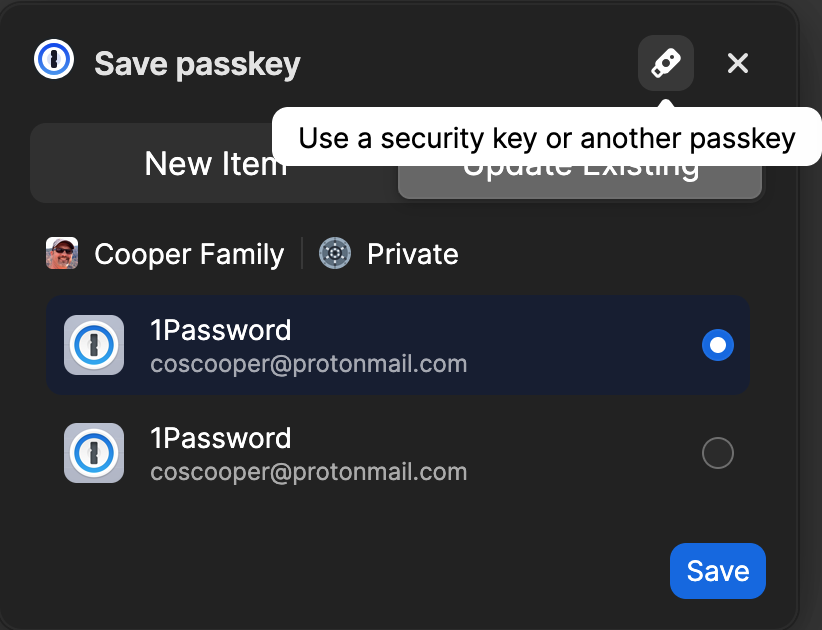
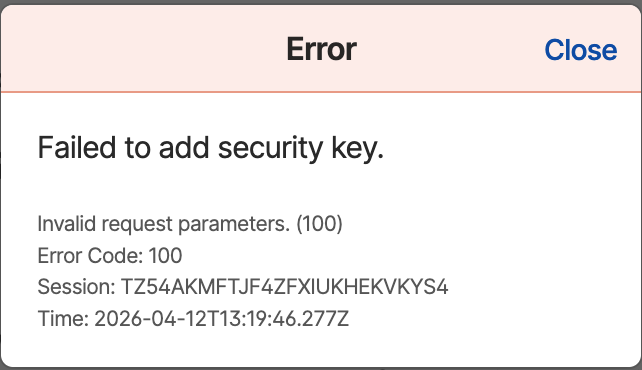
My first thought was it should have prompted me for my PIN or PUK given I'd set it up with the Yubico Authenticator application and that maybe it'd just needed me to unlock it on the device.
I went back over to the Yubico Authenticator app and selected Passkey - attempted to unlock the FIDO2 section - what ever that is - and it failed to take my PIN. More sighing! I use a pretty standard PIN coding system - yeah, i know, not supposed to use same passwords/pins etc... but when you live in a login to many things world on a daily basis (I once tracked on any given day, I actually can log into, enter a pin/password or place my thumb on my biometric reader on my Mac - like over 300 times any given day - yikes) - So, I have to use something familiar.
No combination would work... sighing switched to cursing and GRRRRRR.... WTF!?
Considering I'd not used this device for anything yet, I noticed the "Factory reset" button. Maybe I'd slipped during the PIN entry phase and figured I'd just start over from scratch. More sighing.

This is where it went off the rails again.
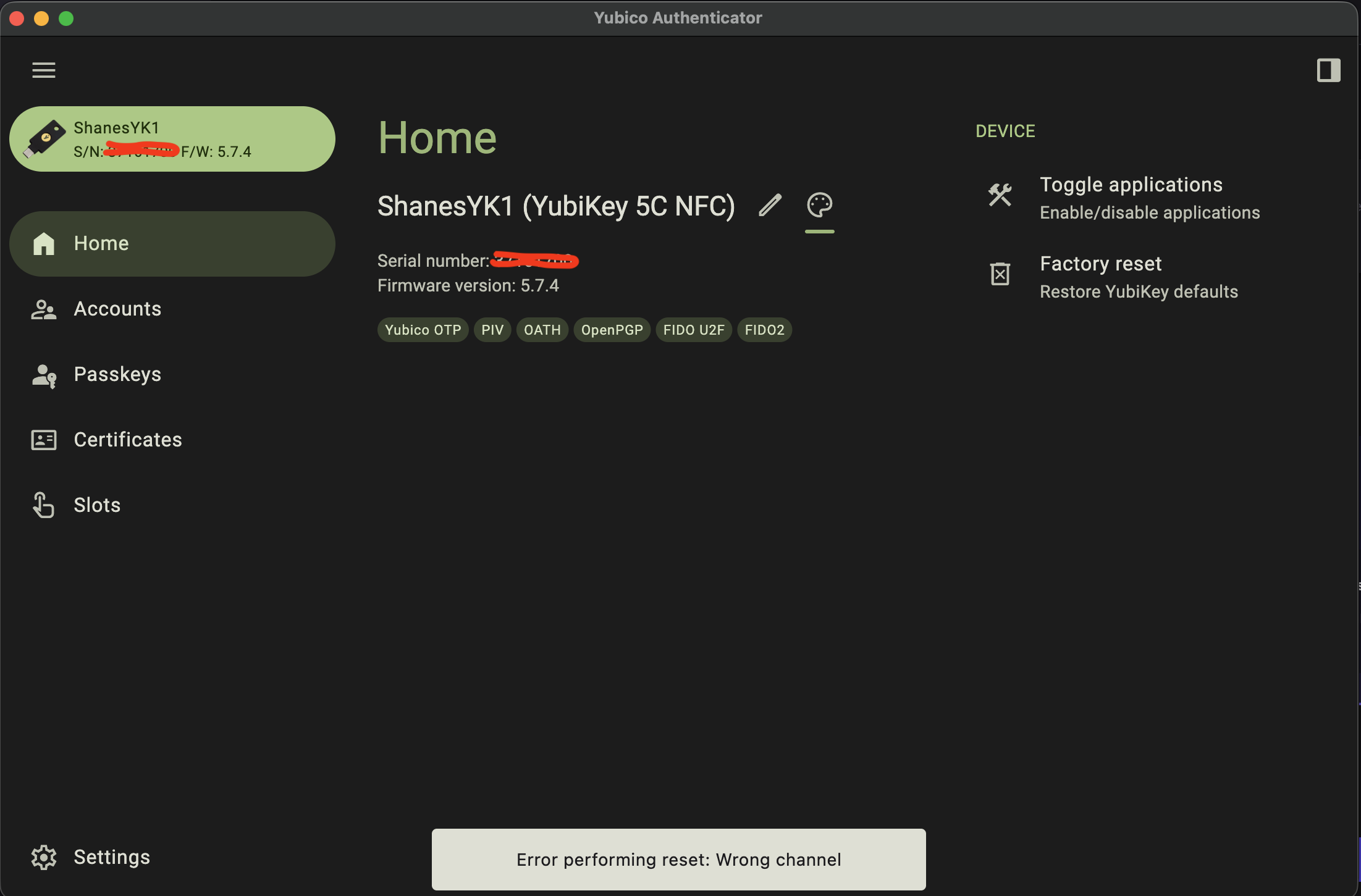
I tried 3 or 4 times and continued to get this error.
I then popped over the Yubikeys support site, entered a support request, sent them my notes, included this screen shot and am waiting to hear back as to why this failed. I mean, factory reset means wipe the device and start over. But, apparently, when you select FIDO2, it fails.
Here's where I as a "casual" user who just wanted to use this hardware token device for 2FA on one of the most important aspects of my daily tools, my main password manager -> it's been an abismal failure. Yes, initially it was my fault for not reading for comprehension and/or failing to follow instructions, but once I got on track, it still failed all over the place.
While I'm fairly technical and specifically work in the PKI space - I work for the largest Certificate Authority on the planet, using a Yubikey is NOT for the faint of heart or the "casual" user.
I'm struggling and can't imagine a novice or casual user would have any better luck than I have with this device.
Stay tuned as I figure out how to use it for other applications.